
Apr 23, 2026
Master screen mirroring hdmi for Windows, Mac, iOS & Android. Our 2026 guide covers cables, troubleshooting, and pro tips to display anything.
Ten minutes before players start walking into the clubhouse, somebody asks the same question every tournament staff member has heard: “Can we get the live leaderboard on that TV?”
That’s when bad setups show themselves. A phone won’t cast. The venue Wi-Fi wants a password nobody knows. The smart TV app is outdated. The projector sees the laptop, then drops the signal. Everyone starts tapping settings while the first foursome is already on the course.
The fix, most of the time, is much less glamorous than people expect. Screen mirroring hdmi is still the cleanest way to get a leaderboard on a big display when the room is filling up and you need it to work right now. Wireless has a place, especially for quick sharing or temporary overflow screens, but tournament-day reliability usually comes from a hard connection you can see, test, and lock in.
Why Reliable Screen Mirroring is a Game-Changer
The difference between a casual display and a professional event display comes down to one thing: whether staff can trust it.
A live leaderboard isn’t background decor. Players look for it after the turn. Sponsors notice it. Guests gather around it. If it freezes, disconnects, or shows the wrong screen, the whole room feels less organized. That’s why dependable screen mirroring hdmi matters so much in a clubhouse, banquet room, or scoring area.
HDMI is everywhere for a reason. As of January 2026, nearly 14 billion HDMI-enabled devices have been sold worldwide, which makes it one of the most widely adopted audio and video interfaces in use today, according to DataIntelo’s HDMI and screen mirroring market overview. In practical terms, that means most TVs, projectors, monitors, switchers, and adapters you’ll deal with at an event already expect HDMI.
Wireless mirroring sounds easy when you’re talking about one person sharing a slide deck in a quiet room. It gets less easy when you’re in a busy clubhouse with guests arriving, phones hopping across networks, and staff trying to juggle scoring, announcements, and food service. A wired HDMI line removes a whole layer of uncertainty.
Practical rule: If the display is mission-critical, wire it first. Treat wireless as a convenience, not the backbone.
That doesn’t mean modern tournament tech should be complicated. It means the display side should be boring. The leaderboard should appear when the laptop opens, stay on screen, and recover fast if someone unplugs something by accident. That’s the standard.
If you’re already tightening up the rest of your tournament operations, the same thinking applies to display planning. Good golf tournament manager software helps scoring and administration run smoothly, but the in-room experience still depends on whether your screens show the right thing at the right time.
The best setups feel invisible. Staff stop worrying about connection drama, and players see scores updating on the clubhouse TV like they should.
Getting the Right Gear for Screen Mirroring
Most HDMI problems start before anyone plugs anything in. They start when the wrong cable, wrong adapter, or wrong assumption gets packed for the event.
The simplest buying rule is this: match your source device’s port to the display’s HDMI input, then choose a cable rated for the resolution you need. For leaderboard duty, that usually means a stable 1080p or 4K signal with readable text, not chasing specs you’ll never use.
Start with the cable standard
HDMI 2.1, introduced in 2017, supports 8K video and 48Gbps bandwidth, while the more common HDMI 2.0 handles 4K at 60Hz, according to the HDMI specification overview on Wikipedia. For most leaderboard displays, a High Speed HDMI cable that supports 1.4 or 2.0 is enough for a sharp 1080p or 4K image.
That matters because a lot of organizers either overspend on cable specs they don’t need or underspec the cable and then blame the TV. For text-heavy displays like pairings, hole-by-hole updates, and leaderboard views, signal stability matters more than bragging rights.
A practical way to think about it:
Standard use: Laptop to TV at 1080p. A decent High Speed cable is usually fine.
4K clubhouse TV: Use a cable and adapter that explicitly support 4K output.
Future-proof event kit: Keep at least one newer, higher-rated cable in the bag for unknown venue hardware.
Match the adapter to the device
The cable gets all the attention, but the adapter is usually where event-day mistakes happen. Modern laptops and phones often don’t have a full-size HDMI port, so you need the correct bridge.
Device Type | Port | Required Adapter |
|---|---|---|
Modern MacBook | USB-C | USB-C to HDMI adapter |
Windows laptop with USB-C video output | USB-C | USB-C to HDMI adapter |
Older laptop with Mini DisplayPort or Thunderbolt 2 | Mini DisplayPort | Mini DisplayPort to HDMI adapter |
iPhone with Lightning port | Lightning | Lightning Digital AV Adapter |
iPad with USB-C | USB-C | USB-C to HDMI adapter |
Android phone with USB-C video output | USB-C | USB-C to HDMI adapter |
Chromebook with HDMI port | HDMI | Standard HDMI cable |
Chromebook with USB-C video output | USB-C | USB-C to HDMI adapter |
A few notes from the field help here:
MacBook users: USB-C to HDMI is the normal path. Cheap adapters can be flaky, especially after they’ve lived in a golf bag or desk drawer for a season.
iPhone and older iPad users: The Lightning Digital AV Adapter is the one people forget to bring.
Android phones: Some work great over USB-C to HDMI, some don’t output video at all. Test the actual phone model before event day.
Older clubhouse laptops: Check whether they already have a native HDMI port before buying extra hardware.
The best adapter is the one you tested last week on the exact device you’ll use at the event.
If you’re deciding whether a TV or projector is the better endpoint for your setup, this practical comparison of projector vs TV for your home theater is useful because the same trade-offs show up in event spaces too. TVs usually win for brightness and simplicity. Projectors can work well in banquet rooms, but only if ambient light is under control.
If your display is part of a broader scoring setup, it also helps to think through the source device itself. A dedicated laptop or tablet used for golf tournament scoring app management is usually safer than relying on somebody’s personal phone that also handles calls, texts, and random notifications.
What to pack every time
Build a small event display kit and leave it packed. Mine would include:
Two HDMI cables: One primary, one backup.
Two adapter types: Usually USB-C to HDMI and Lightning to HDMI.
A power strip: Clubhouse outlets are never where you want them.
A short spare cable: Helpful when the source device needs to sit close to the TV.
Label everything: Adapters disappear fast when several staff members are setting up.
That kit saves more tournaments than any clever casting trick ever has.
How to Mirror Your Screen with HDMI
Once you have the right cable path, actual setup is usually fast. The key is using the right display mode and making sure the source device sends video to the TV instead of trying to be too smart.
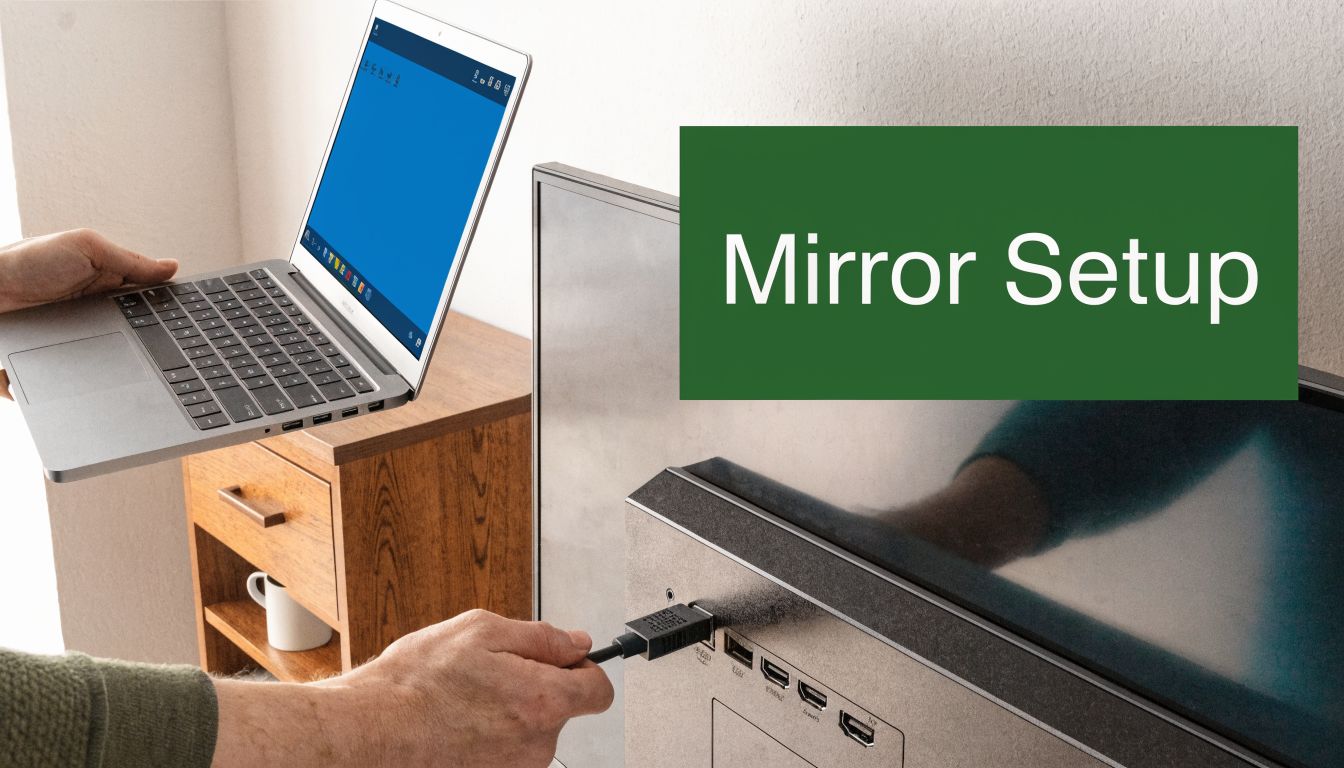
Before changing any settings, do these basics first:
Connect the cable fully: Half-seated HDMI plugs cause a surprising number of problems.
Choose the right TV input: If the TV is on HDMI 2 and you plugged into HDMI 1, nothing else matters.
Power the adapter if needed: Some mobile adapters behave better when external power is connected.
Wait a few seconds: Displays and laptops often need a moment to negotiate the signal.
Windows laptops
Windows is usually the fastest to work with at events because it gives you a simple display shortcut. Press Windows + P and you’ll see the projection options.
For leaderboard use, Duplicate is usually the best choice. It shows the same content on the laptop and the TV, which makes it easy for staff to watch the room display while still controlling the source from the laptop. Extend is useful if you want the public leaderboard on the big screen while keeping admin tabs, email, or setup tools on the laptop display.
If the TV stays blank, open display settings and look for the second display manually. Sometimes Windows sees the screen but defaults to a resolution the TV doesn’t like. Dropping the output to a common setting usually gets things moving fast.
macOS
On a Mac, plug in the adapter and HDMI cable first, then check the display options from Control Center or System Settings. Apple usually detects the external display automatically, but you may need to choose whether you want mirroring or an extended desktop.
For event work, mirroring keeps things simple. If you’re managing a browser-based leaderboard and want the room to see exactly what you see, that’s the cleanest route. If you’re running operations on the Mac while the TV shows only the public-facing screen, use extended mode and drag the browser window to the external display.
Macs also tend to be where image-fit issues show up, especially on older TVs. I’ll cover that in troubleshooting, because it’s common enough to deserve its own fix.
iPhone and iPad
A wired connection from iPhone or iPad is often easier than people expect. Plug the Apple-compatible adapter into the device, connect the HDMI cable, and select the TV input. In many cases, the screen appears automatically.
This approach is especially handy when someone needs to show results, photos, sponsor slides, or a simple leaderboard view without joining venue Wi-Fi. If you’re working from an iPhone and want a more device-specific walkthrough, this guide on how to mirror iPhone to TV is a useful companion.
A practical caution matters here. Phones work best as a backup or a short-term source. For a live leaderboard that stays on all afternoon, a dedicated laptop or tablet is usually more stable and easier to manage.
Android phones and tablets
Android is less uniform because different brands handle video output differently. If the device supports video over USB-C, the process is straightforward: connect the USB-C to HDMI adapter, connect the HDMI cable, and switch the TV to the correct input.
Some Android devices mirror instantly. Others show a prompt, and some don’t support wired video out at all. That’s why this is one area where testing the exact device matters more than generic instructions.
If the picture appears but doesn’t look right, check the display settings on the phone. Some models let you adjust external display behavior, while others keep it automatic.
Keep one known-good Android device and one known-good adapter in your event kit. “It should work” isn’t enough on tournament day.
Chromebooks
Chromebooks are usually cooperative with HDMI. If the unit has a native HDMI port, connect directly. If it uses USB-C, use a compatible USB-C to HDMI adapter.
After connecting, open the display settings to choose mirror or extend. For clubhouse use, mirror mode is less confusing for staff. It also reduces the chance that someone opens a browser tab on the wrong screen and wonders why the TV isn’t changing.
Mirroring versus extending in real life
A lot of people hear “screen mirroring hdmi” and assume that’s always the right choice. It isn’t always.
Use mirroring when:
Staff need to see the same thing the audience sees
You want simple setup with fewer moving parts
Multiple people may need to take over quickly
Use extended display when:
You want the leaderboard on the TV full time
Staff need separate private workspace on the laptop
You’re switching between public display and admin tasks
For most golf events, mirroring is the safer default during setup. Once things are stable, extended mode can be cleaner if one person is actively managing the display.
Pro Tips for Displaying Live Leaderboards
Getting a signal on one TV is basic. Running a polished event display is different. Clubhouse environments add awkward mounting positions, long distances, bright rooms, and last-minute requests like “Can we put this on the patio screen too?”
Handle wall-mounted TVs the smart way
Wall-mounted clubhouse TVs cause more headaches than the screen itself. The problem usually isn’t software. It’s physical clearance behind the set.
For tight spaces, angled HDMI adapters such as 90° or 270° connectors are one of the simplest upgrades you can make. They reduce cable strain and help prevent connection failure or damage to the TV’s HDMI port, as outlined in this angled HDMI adapter overview from ShowMeCables.
That’s not a small detail. If the plug is jammed hard against the wall, the signal may cut in and out every time the cable gets nudged. An angled adapter turns a fragile setup into a durable one.
Plan for more than one screen
If the main room has multiple displays, don’t rely on somebody unplugging and replugging cables all day. Use the right distribution hardware.
A few practical choices:
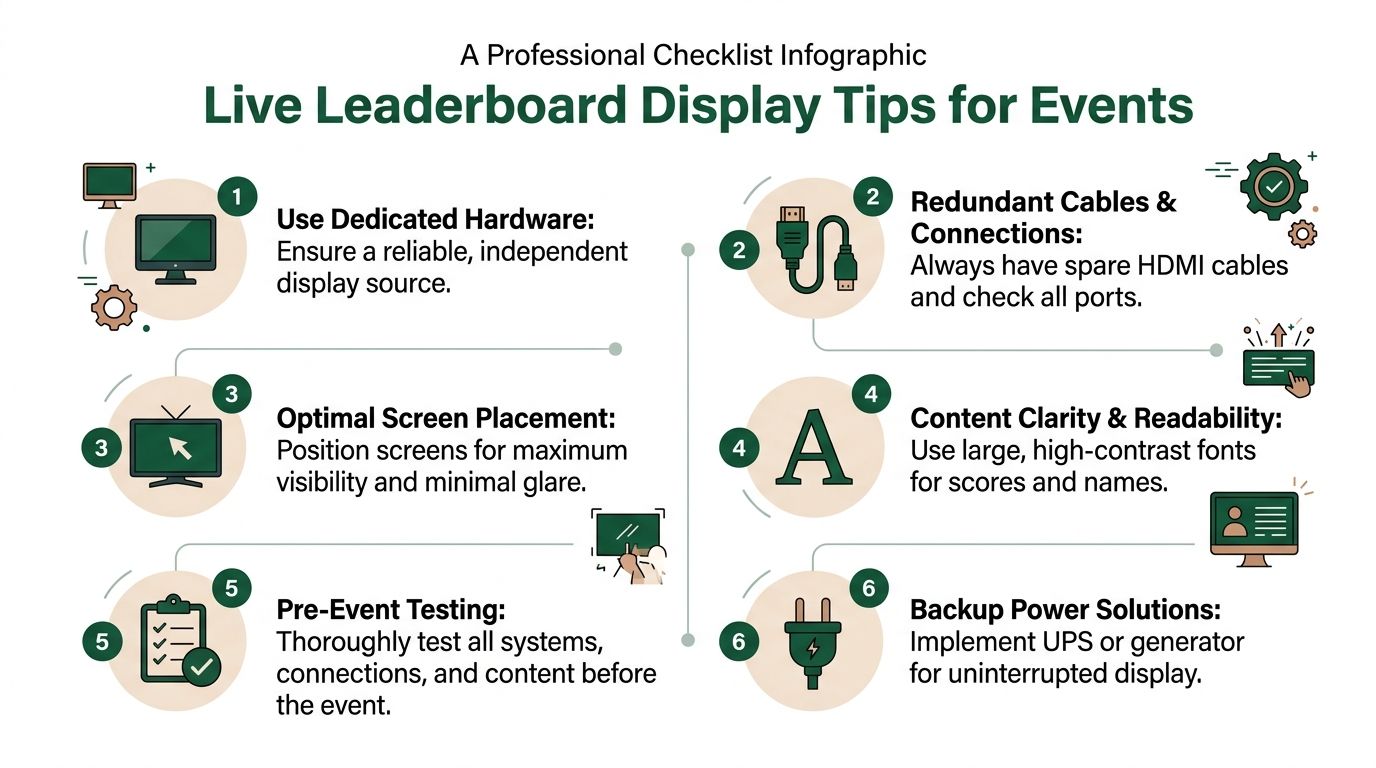
HDMI splitter: Sends the same leaderboard feed to multiple displays.
HDMI switcher: Lets you choose between multiple source devices on one display.
Dedicated source laptop: Keeps the public feed isolated from personal devices and notifications.
Each has a job. Splitters help when the bar TV, banquet room display, and scoring area monitor all need the same leaderboard. Switchers help when the awards slideshow, sponsor loop, and live leaderboard share one screen.
Watch your cable path
Long cable runs can be messy in event spaces. Don’t snake a consumer-grade cable across a room and hope for the best. If the laptop can sit near the TV, do that first. Shorter runs are easier to protect, easier to tape down, and easier to troubleshoot.
When distance can’t be avoided, use hardware designed for it. The exact product depends on the room, but the rule stays the same: build for reliability, not convenience. Every extra coupler, adapter, and extension point creates another failure point.
Put the source where the signal path is easiest, not where the operator chair is most comfortable.
Make the leaderboard readable across the room
A display can be technically connected and still be poor for the audience. The usual issue is text. If names, scores, or hole positions look tiny on a big TV, the problem is often layout, zoom, or display scaling.
A few fixes that consistently help:
Increase browser zoom: Especially helpful for TV displays viewed from across the room.
Use full-screen mode: Remove tabs, bookmarks, and other clutter.
Check the TV picture mode: Some modes sharpen text better than others.
Avoid odd resolutions: A common display resolution usually looks cleaner than a fancy mismatched one.
If you’re displaying a web leaderboard, test it from the back of the room. Standing two feet from the TV tells you nothing. The person near the bar rail is the true judge.
Build a fail-safe event routine
Professional display work is often just disciplined prep. Not fancy tech.
A reliable routine looks like this:
Test the exact device the day before: Not a similar laptop. Use the actual device.
Label the active HDMI input on the TV remote: Staff should know where to go instantly.
Carry a printed fallback instruction card: Helpful when someone else has to restart the setup.
Disable sleep settings on the source device: Screensavers and sleeping laptops kill momentum.
Keep backup hardware in one bag: Don’t split adapters across offices and carts.
If your event workflow depends on real-time scoring, the display deserves the same seriousness as registrations, carts, and score verification. Good golf tournament scoring software can keep the data flowing, but the room still judges the experience by what appears on the screen.
Troubleshooting Common Screen Mirroring Issues
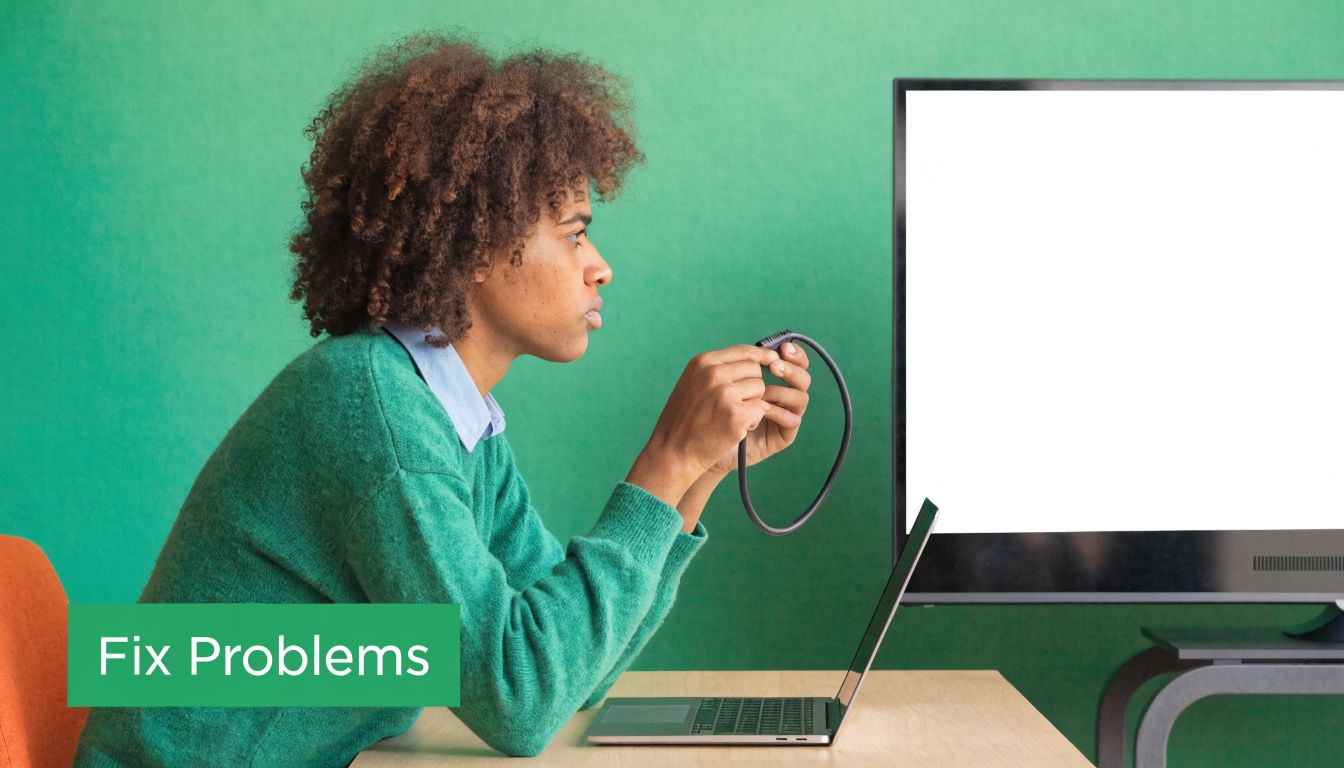
Most HDMI failures aren’t mysterious. They usually come down to input selection, cable seating, display settings, or a mismatch between what the source is sending and what the TV expects.
No signal on the TV
Start with the boring checks first. They solve the majority of issues.
Use this order:
Confirm the TV input: The display may be fine, just set to the wrong HDMI port.
Reseat both ends of the cable: Disconnect and reconnect firmly.
Restart the source device: Laptops and tablets often renegotiate the display correctly after rebooting.
Try another cable or adapter: This is why backups matter.
Try another HDMI port on the TV: One bad port can waste a lot of time.
If the source device sees the display but the TV remains black, lower the output resolution and try again. Some older venue TVs don’t like the first signal a modern laptop sends.
The image has black bars or cropped edges
This one frustrates a lot of users because it looks like the signal is “almost” right. Overscan and underscan are common HDMI fitting problems where the picture is either cropped at the edges or surrounded by black bars. Apple notes that these issues often come from HDMI handshake mismatches, where the TV misinterprets the source signal. The most common fix is adjusting the Underscan slider in Mac display settings or finding Screen Fit on the TV remote, as explained in Apple’s guidance on underscan and overscan.
In plain language, the TV and source disagree about how the image should fill the panel.
Try these fixes:
On Mac: Open display settings and adjust underscan if the option appears.
On TV: Look for screen fit, just scan, aspect ratio, or similar picture-size controls.
Avoid zoom modes: Many TVs default to picture modes that crop edges.
Reconnect after changing settings: Some TVs don’t fully apply the change until the signal refreshes.
If names at the edge of the leaderboard are getting clipped, check TV aspect settings before you blame the laptop.
Audio is coming from the laptop, not the TV
This is common with laptops and tablets. The video goes out over HDMI, but the computer keeps audio on its internal speakers.
The fix is usually quick. Open the source device’s sound settings and select the HDMI display as the output device. On some systems, disconnecting and reconnecting the cable makes the TV appear in the audio list.
Flickering, unstable picture, or intermittent dropouts
When the screen cuts in and out, think physical setup before software. Loose connections, strained cables, and worn adapters are the usual culprits.
Check these points:
Relieve cable strain: Especially on wall-mounted TVs.
Swap the adapter first: Small adapters fail more often than TVs do.
Reduce movement near the source device: A laptop shifting on a table can tug the connector.
Simplify the signal path: Remove unnecessary couplers and converters.
If the signal becomes stable with a shorter direct cable, your original path is the problem. Don’t fight that. Replace the weak link and move on.
Frequently Asked Questions About HDMI Mirroring
Is screen mirroring hdmi the same as casting?
No. HDMI mirroring is a direct wired video connection from your device to the display. Casting usually sends content over a network to a smart TV or streaming device.
That difference matters at live events. Wireless mirroring through standards like Miracast can experience latency over 100ms on crowded networks, while a direct HDMI connection offers near-zero latency, making wired HDMI the better professional choice for dynamic content and reliable live displays, based on the AirServer and Miracast performance references cited here.
Does HDMI mirroring use Wi-Fi or cellular data?
No. A direct HDMI connection doesn’t need Wi-Fi to carry the picture from the device to the TV. If the content on screen comes from a web app or browser page, the source device may still need internet access for live updates, but the actual display link is wired.
What’s the difference between mirror and extend?
Mirror shows the same content on both screens. Extend turns the TV into a second workspace.
For tournaments, mirroring is easier when staff want to watch the same leaderboard the room sees. Extend is better when one person needs to keep admin tools, notes, or messages off the public display.
Why won’t my phone show up on the TV with HDMI?
The usual causes are simple: wrong adapter, wrong TV input, or a phone that doesn’t support video output over its port. iPhones with Lightning need the correct AV adapter. Android phones vary more, so testing the exact model is important.
How do I get sound through the TV speakers?
After connecting HDMI, open the source device’s audio settings and select the TV or external display as the output. Some devices switch automatically. Others need manual selection.
Should I use a phone or a laptop as the event source?
A laptop is usually the better choice for a live leaderboard that stays up for hours. It’s easier to power, easier to control, and less likely to get interrupted by calls, texts, or screen lock behavior. Phones are good backups.
If you want the scoring side to be as smooth as the display side, Live Tourney gives golf operators a simple way to run events, collect scores in real time, and keep live leaderboards ready for the screens players watch in the clubhouse.





