
Jul 23, 2026
golf tournament registration, word template, event registration form, golf outing checklist, tournament organizer
Get our free golf tournament registration form template word for 2026. This guide shows you how to easily create, customize, and distribute your form for a

You're trying to get a tournament on the books, and the clock is already moving. The phone rings, players want to know the format, the pro shop needs names, and someone has asked where to send the check. A golf tournament registration form template Word file can calm that chaos down fast, because it gives you a printable master form that collects the basics in one place instead of scattering details across email threads. If you're organizing a charity outing, club event, or corporate tournament, that kind of structure matters before the first tee time is ever assigned.
A good Word template is more than a sign-up sheet. It gives you a clean way to gather player names, team details, sponsorship selections, and payment information in a format that staff can use later, which is why Word remains a practical starting point for organizers who need a customizable document rather than a simple online form (organizing a golf tournament efficiently).
Why a Professional Registration Form Matters
A messy registration process usually shows up in the same way every time. One player emails a name, another texts a screenshot, a sponsor promises a check soon, and someone else forgets to include the full foursome. By the time you are building pairings, chasing down balances, or printing cart signs, the missing pieces turn into manual work for your staff instead of information the form captured up front.
A professional golf tournament registration form template Word file gives players one place to submit what matters. Good templates collect full foursome information, player names, addresses, contact details, sponsorship level, and payment details, which gives organizers a cleaner path from scattered replies to usable event data. It also helps on the back end, because every unclear field becomes extra data entry later, and that means more time spent fixing pairings, payment records, and sponsor lists after the form has already been printed. For organizers comparing paper workflows with software, how to organize a golf tournament efficiently shows how much work starts after registration opens.
Practical rule: If a field affects pairings, payment, or sponsor fulfillment, it belongs on the form. If it only adds curiosity, leave it off.
A Word template is still a traditional tool, and that is part of the appeal. You can print it, email it, save it, and hand it to volunteers without teaching anyone new software. It also fits a reality many tournament directors know well, the printed form is only the first step, because someone still has to enter the names, sort the payments, and update the pairings by hand. For organizers who need a quick, dependable starting point, a reusable document is often the fastest path to getting real registrations in hand. If you later want to automate your client intake, the pain points show up in the same place, the gap between a form that looks organized and a process that stays organized.
Customizing Your Free Golf Tournament Word Template

Start with the details players check first. Replace placeholder text with your event name, logo, date, time, venue, and contact details, then make sure the branding matches the course or organization running the outing. Some editable golf tournament registration templates come as .DOCX files and are meant to be edited in Word or Google Docs, which keeps the process familiar for staff and volunteers who already work in those tools (editable charity golf tournament registration form).
Clean up the event details first
Put the event information at the top of the page, where players can confirm at a glance that they are registering for the right outing. Include the date, tee time or shotgun start time, venue, and entry fee in a clear block, then keep the wording plain. If your tournament has divisions or a specific format, state that before the payment section so no one has to infer the setup.
Match sponsorships to your actual fundraiser
The strongest templates do more than collect names. They also support revenue. One editable form includes four player slots plus sponsorship choices such as Hole/Tee Box at $150, Cart at $25, and a custom donation amount, which shows how a single Word document can combine registration with fundraising in a practical way. If your event uses different packages, rename the tiers so the sponsor options fit your course, your cause, and the people you expect to buy in.
Keep the document reusable
Save the finished version as the master copy and do not edit the original on tournament day. That sounds basic, but it prevents last-minute overwrites and keeps the template ready for next year. It also makes the post-print work easier, because the same clean file can be reused when you are entering registrations by hand, tracking payments, or updating pairings after changes come in. If you also want to streamline other intake processes around the event, a helpful adjacent resource is this guide to automate your client intake, especially if your staff is collecting recurring information in multiple places.
A polished Word form does not need fancy design tricks. It needs clear labels, clean spacing, and enough flexibility that your team can update it quickly without breaking the layout.
Building the Perfect Form with Essential Fields
A registration form works best when it follows the order your team will use later. Start with event details, then move to player and team identity, then sponsorship or add-on choices, and finish with payment and notification routing. That sequence matches how tournament staff process registrations, so the form feels organized instead of crowded.
The biggest mistake is trying to collect everything from everyone. A form that asks too much too early slows completion, but a form that asks too little creates cleanup later when you are building flights or chasing missing contact data. The practical middle ground is to separate must-have fields from nice-to-have fields so players can finish quickly without leaving staff to guess.
Field Category | Field Name | Purpose / Notes |
|---|---|---|
Event Details | Event date | Confirms the correct tournament and helps staff schedule check-in and pairings |
Event Details | Time and venue | Sets expectations for arrival, parking, and course logistics |
Team Identity | Foursome name or team name | Makes pairings and packet labels easier to manage |
Team Identity | Player names | Needed for scorecards, tee sheets, and communication |
Team Identity | Captain contact | Gives staff one reliable point of contact for changes |
Contact Information | Email address | Used for confirmation, logistics, and follow-up |
Contact Information | Phone number | Useful for last-minute day-of updates |
Operations | Addresses | Common in standardized Word forms for recordkeeping and mailing needs |
Operations | Handicap or skill information | Helps with accurate pairings and format setup |
Sponsorship | Sponsorship level | Tracks fundraiser participation and fulfillment |
Sponsorship | Add-on selections | Lets staff record contests, extras, or other event-specific choices |
Payment | Payment method | Clarifies whether payment is by check, card, or another method |
Payment | Payment status | Prevents confusion when reconciling registrations |
Optional | Meal preference | Helpful for catering, but not always essential |
Optional | Shirt size | Useful for swag, but easy to leave out if inventory is tight |
Optional | Tee time preference | Helpful for tee-time starts, less relevant for shotgun formats |
Optional | Photo consent | Useful for marketing and event albums |
Optional | Waiver acknowledgment | Important when your event includes liability language |
A few items deserve special attention. Team captain relationships matter because one person often needs to answer for the whole foursome, and waiver/photo-consent fields reduce back-and-forth after the form is submitted. Guides also note that many templates include waivers, meal choice, shirt size, tee time preference, photo consent, and sponsor interest, but those extras should support your operation, not bury the registration itself (golf registration form guidance).
Keep the form long enough to be useful, but short enough that a player can finish it without pausing twice.
If your tournament uses shotgun starts, tight team mapping matters more than personal preferences. If it uses tee-time starts, spacing and timing details become more relevant. The form should match the format, not fight it.
A clean Word template still needs a plan for what happens after the print button. Registrations often come back with incomplete fields, handwritten changes, or sponsor questions that do not fit neatly into the original layout. If your team collects sponsorships through the same packet, this is also where it helps to coordinate the offer with a clear charity golf tournament sponsorship package structure so staff can match names, benefits, and fulfillment without digging through separate sheets.
Managing Payments Waivers and Sponsorships
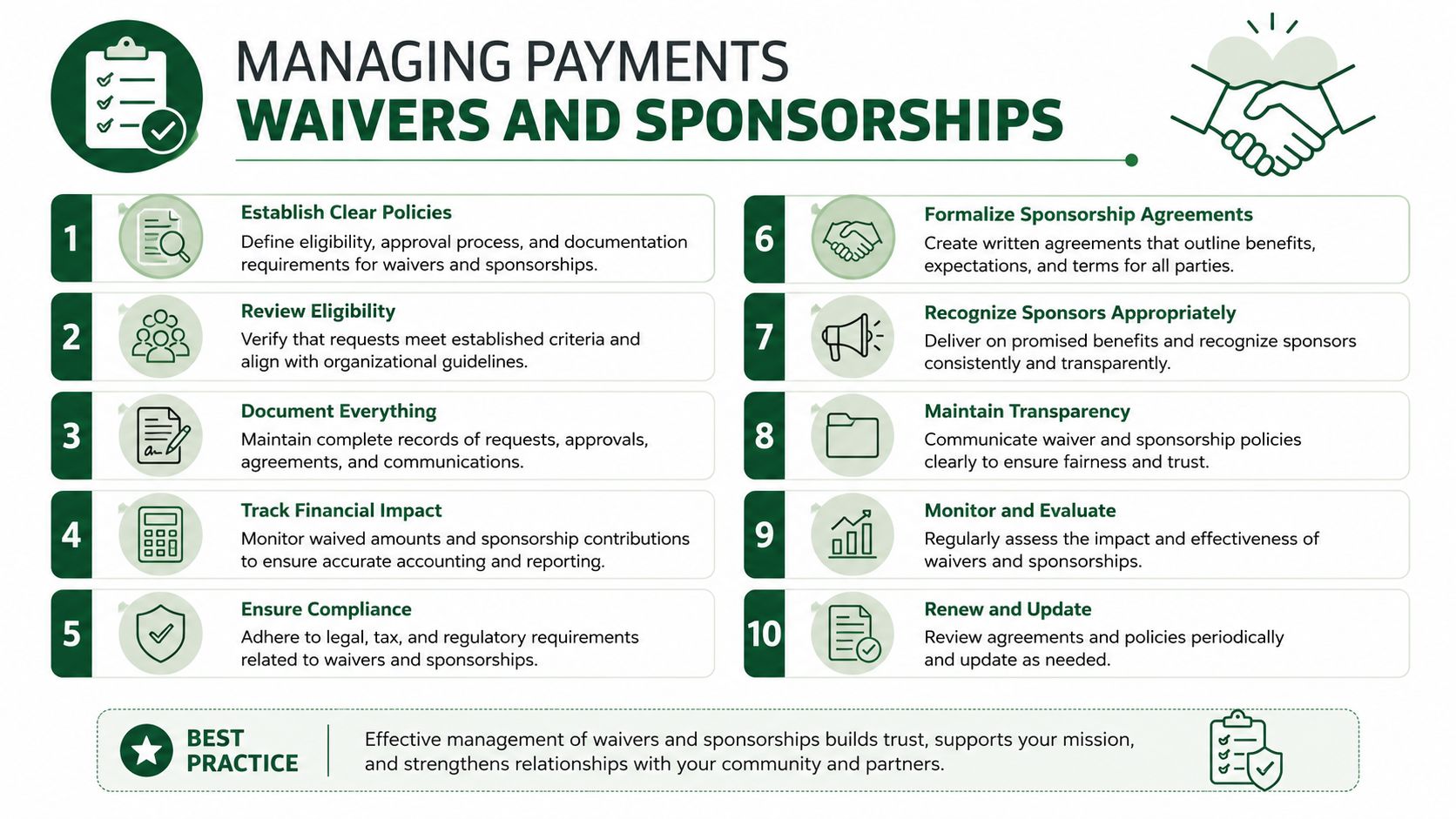
A paper registration form only does part of the job. The harder work starts after it comes back, because someone still has to match payments, check waivers, record sponsor commitments, and follow up on missing information. A Word-based workflow needs a clear handoff for those tasks, or the stack of forms turns into a pile of unresolved details.
Handle payments like a tracking process
Every payment should be traceable from the moment it arrives. If a check comes in, record who accepted it, when it arrived, and what it covers. If cash is collected at check-in, note the amount right away and store it according to your organization's procedure.
The form itself should make that work easier. Place payment instructions and payment status near the bottom of the document, after the event and participant fields, so staff can mark the form before it gets filed or handed off for pairings and check-in.
Put waiver language where staff will actually see it
Waiver text needs space and visibility. If the language is squeezed into a corner or set in tiny type, staff will miss it and players may sign without really seeing what they accepted. A printed form should give the waiver enough room to read cleanly and sign without confusion.
If a sponsor is also entering a team, keep the sponsor field separate from the waiver area. That keeps the form easy to process after print, when handwritten notes, signatures, and missing initials all need to be checked by hand.
Make sponsor tiers obvious
Sponsor tracking gets messy when the choices are vague. Use clear tier names, list the amount or benefit next to each option, and leave space for an internal note if a sponsor wants a specific hole, cart placement, or team assignment. That matters in charity events, where sponsor information and player registration often sit on the same page and still need to be reconciled later.
For organizers who need the sponsor side spelled out before the forms go out, this guide to charity golf tournament sponsorship packages helps keep the wording aligned with the actual workflow.
A Word form can handle these moving parts, but only if someone owns the follow-up. If the team does not reconcile payments, waivers, and sponsor notes the same day, the paper trail becomes harder to trust, and manual entry for pairings or check-in starts from a messy starting point.
Printing and Distributing Your Registration Form

Print still works, especially for clubhouses, pro shops, sponsor meetings, and committee tables. It's familiar, easy to hand out, and simple for players who prefer paper over a screen. The trade-off is obvious, though. Printed forms have to be collected, scanned, filed, and entered later, which adds work before pairings or check-in can be finalized.
A digital copy helps, but a basic file attachment isn't enough if you want clean distribution. The broader template market now supports payment processing, real-time submission tracking, and distribution through email, QR codes, social media, and websites, which shows how event administration has moved beyond a stack of paper at the front desk (golf registration template distribution options). Even when you stay in Word, it's smart to save a shareable version that staff can email quickly or post on a club page.
Choose the format based on your audience
Paper at the club: Best when members are already on site and likely to register in person.
Email attachment or PDF: Useful when you're sending the form to existing players or sponsors who prefer a file they can complete later.
Website link or QR code: Helps if your audience is split between digital and traditional habits, because people can register from a phone without hunting for the file.
A printed form is still the easiest option for some committees, but it becomes a bottleneck when updates change mid-week. A digital version is easier to distribute, yet it still depends on someone reading and entering the responses correctly. The format you choose should match how your players sign up, not how you wish they'd sign up.
From Manual Forms to Automated Tournament Management
A Word file gets the job done, but the after-print work is where the hours disappear. Someone still has to enter each registration, confirm each payment, update each pair, and handle changes when a player drops or a sponsor swaps packages. That is manageable for a small outing, but it gets painful fast once registrations start coming in from different channels.
Guided workflows solve part of that problem by reducing friction during entry. Expert template guidance recommends prebuilt sectioning and a one-question-at-a-time layout for longer registrations, because dense static documents make it easier for people to skip fields or abandon the form halfway through (guided golf registration workflow guidance). That is why manual Word forms often become the point where organizers start looking for a system that can handle registration, payment, and communication in one place.
The true cost of a Word form isn't the document itself. It's the manual cleanup required after players finish filling it out.
After the forms are printed and collected, the bottleneck starts. Payments still have to be matched to names, waivers need to be checked, sponsor details have to be sorted, and last-minute changes often arrive after the stack has already been filed. One missed line can turn into a wrong pairing, an incomplete roster, or a sponsor benefit that gets overlooked on event day.
That post-submission work is where software starts to make more sense. A connected system can route the information straight into registration records, pairings, and communication tools, instead of forcing staff to retype everything later. For a practical look at that shift, review software for golf tournament operations, which explains how tournament data can move from signup to management without the extra transcription step. This shift from manual entry to automated systems provides valuable data, similar to the insights on Google Ads campaign measurement that help teams see where responses come from and what follows after submission. Live Tourney follows that approach by supporting custom registration forms and structured roster handling without adding another data-entry layer for staff.
If your event keeps growing, the question is not whether Word can produce a usable form. It is whether your team wants to spend tournament week fixing paper trails, or handling the changes players care about.
When a committee stays with Word, the best approach is to use it for the form itself and build a tighter process around the rest. That means deciding who enters the data, who checks payments, who updates pairings, and how late changes get captured before they become day-of problems. A manual form can still work, but only if someone is ready to manage the cleanup after it comes back from the printers.





